Complete IPTV Setup Guide | IPTVusax
COMPLETE SETUP GUIDE

How to Install IPTVusax on Any Device

Firestick, Smart TV, Android TV, Apple TV, Windows, Mac, Formuler, MAG, Roku, BuzzTV, Mobile – step‑by‑step with official visuals

A person sitting on a sofa using a remote to install IPTV on a Smart TV, Firestick, and Smartphone with IPTVusax interface.
Before you start: Enable Apps from Unknown Sources (Settings → My Fire TV → Developer Options → click "About" 7 times to unlock → turn ON).

Step 1: Install Downloader

Search for Downloader in the Amazon Appstore and install it.

Open Downloader and enter the following codes to install IPTV players:

  • HotPlayer – code 395800 (30 days free)
  • IBO Player Pro – code 923441 (7 days free)
  • SmartOne IPTV – available directly from Amazon Appstore (15 days free)
Official Hot Player IPTV app icon for Firestick installation.

HotPlayer Setup

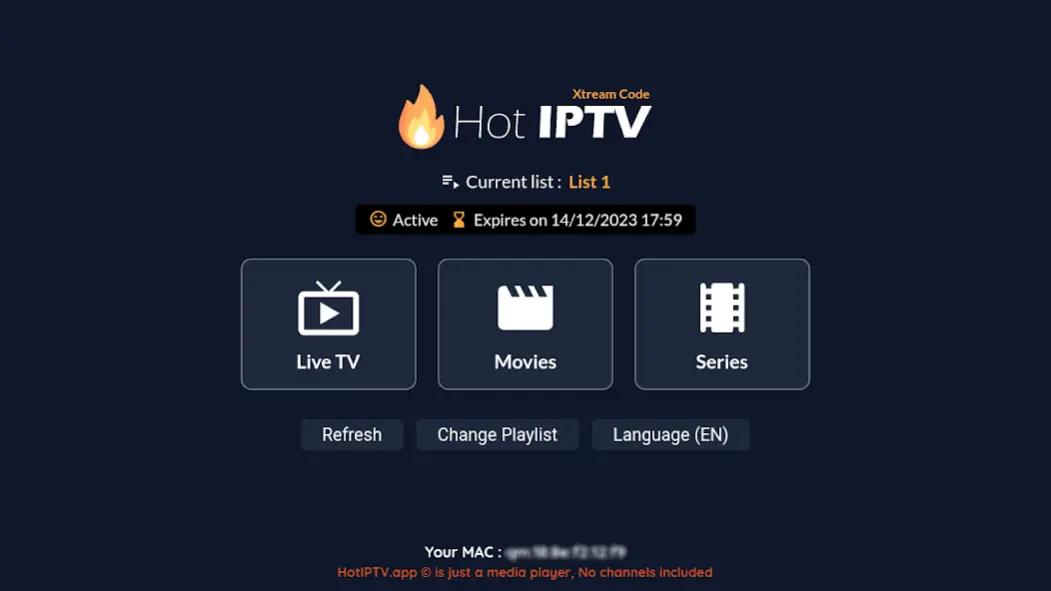
Hot Player app interface showing a Netflix-style layout with movie posters and categories.

Step 1: Open HotPlayer → note the MAC address displayed.

Step 2: On your phone/computer, go to https://hotplayer.app/upload.

Step 3: Enter the MAC address → click NEXT → paste your M3U URL (provided by email) → Playlist name: IPTVusax → click Save.

Important: The M3U URL must start with http:// (not https://). If it starts with https://, the upload will fail.

Step 4: Restart the HotPlayer app. Your channels and VOD will load automatically.

📌 Activation: After 30 days, you may need to purchase a license. Visit HotPlayer activation page.

IBO Player Pro Setup

IBO Player Pro interface on a smart TV highlighting its fast channel switching capabilities.
The main dashboard of IBO Player showing Live TV, Movies, and Series categories.

Step 1: Open IBO Player Pro → note MAC address and Device Key.

Step 2: Go to https://iboplayer.pro/manage-playlists/ and log in using the MAC address and Device Key.

Step 3: Click "Add Playlist" → paste your M3U URL (must start with http://) → name it IPTVusax → Save.

Step 4: Restart the app. Your content will appear.

📌 Activation: IBO Player Pro offers 7 days free; after that, purchase via the app.

SmartOne IPTV Setup

SmartOne IPTV interface showing stable playback and its simple functional design.

Step 1: Open SmartOne IPTV → note the MAC address.

Step 2: Go to SmartOne upload page.

Step 3: Select "M3U Playlist" → enter your TV's MAC address → Playlist name: IPTVusax → paste your M3U URL (http://) → complete security check → click "Add Playlist".

Step 4: Restart the app. Your channels will load.

📌 Activation: 15 days free; after that, purchase via SmartOne activation.

Install apps from your TV's official store: Samsung Smart Hub, LG Content Store, or Google Play Store for Android TVs.

HotPlayer (30 days free)

Search for Hotplayer or HOTIPTV in your TV's app store. Install, then follow the same MAC‑based upload steps as Firestick.

SmartOne IPTV (15 days free)

Install from store → open → note MAC address → upload M3U URL via web portal.

IBO Player Pro (7 days free)

Install, open, note MAC + Device Key, add playlist via IBO portal.

IPTV Smarters Pro

Available on Android TV (Google Play Store). Use Xtream Codes: Server URL, Username, Password.

Recommended Apps & Setup

Enable Unknown Sources in Settings → Security & Restrictions.

  • HotPlayer – install via Downloader (code 395800) → MAC upload.
  • IBO Player Pro – code 923441 → MAC + Device Key portal.
  • TiviMate – from Google Play Store → Add Playlist → Xtream Codes (Server, Username, Password).
  • IPTV Smarters Pro – from Play Store → Xtream Codes login.
  • XCIPTV – from Play Store or sideload (code 792865) – includes built‑in VPN.
XCIPTV Player dashboard featuring built-in VPN support and EPG layout.
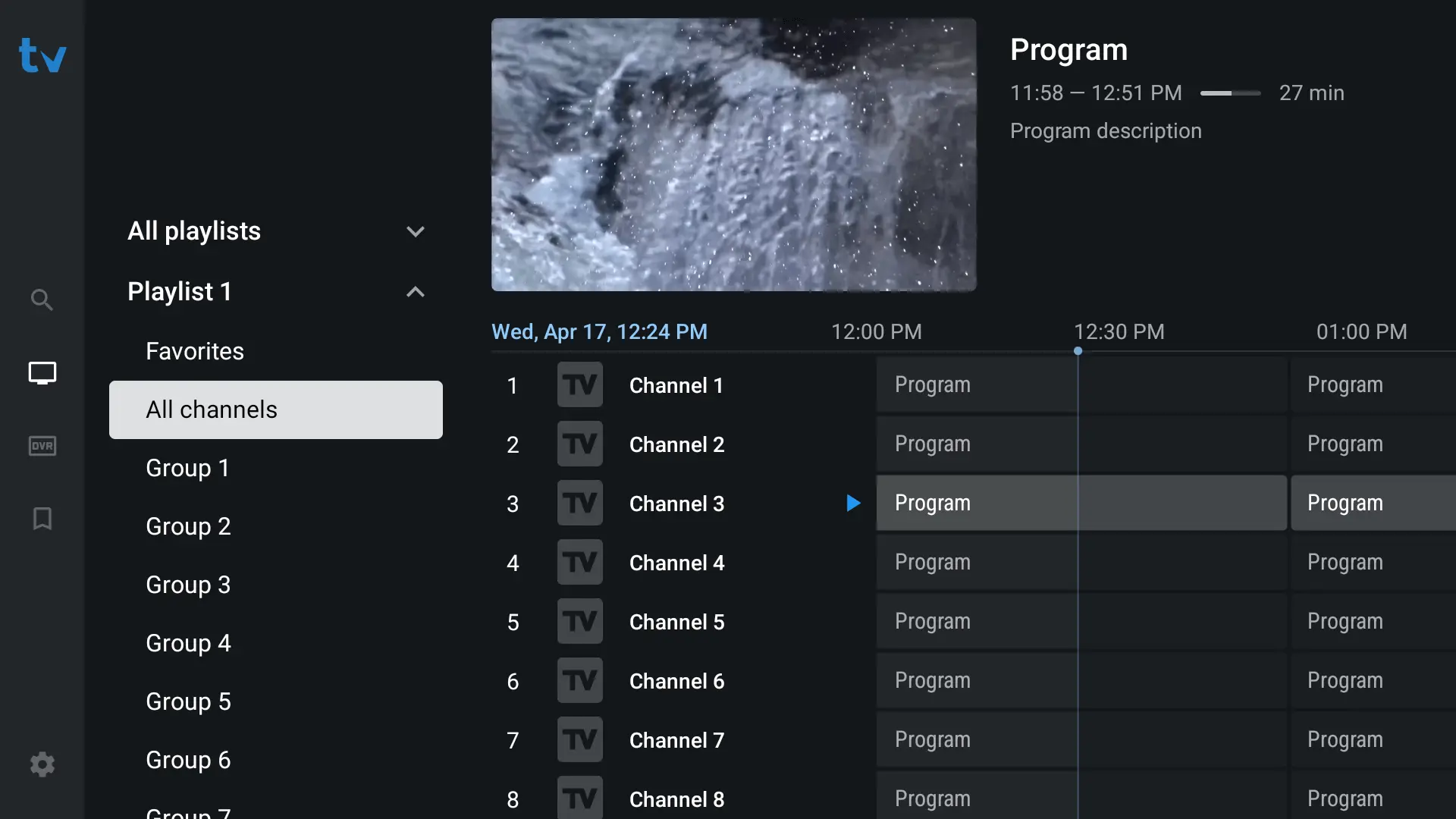
TiviMate IPTV player displaying its professional and customizable EPG grid guide.
Remember: For any M3U URL upload, ensure it starts with http://, not https://.

Apple TV & iOS Devices

Recommended app: IPTVX (limited free) or IPTV Smarters Pro.

Setup with IPTVX:

  1. Download IPTVX from the App Store.
  2. Open the app → tap + New Playlist icon.
  3. Select Xtream (recommended) or M3U Playlist.
  4. Enter Playlist name: IPTVusax, Server URL, Username, and Password.
  5. Tap Connect → wait for channels to load.
If using M3U URL, ensure it starts with http://.

IPTV Smarters Pro (free)

  1. Download from official website (Windows/macOS).
  2. Install and open.
  3. Select Login with Xtream Codes API.
  4. Enter: Name (IPTVusax), Server URL, Username, Password.
  5. Click Add User → channels load.

Web version: http://webtv.iptvsmarters.com/ (same Xtream Codes).

MyIPTV Player (Windows only)

  1. Download from Microsoft Store → Launch.
  2. Settings → Add New Playlist → Xtream Codes.
  3. Enter Server URL, Username, Password → Save.

HotPlayer & IBO (PC/Mac)

Available on Microsoft Store and Mac App Store. Setup identical to Firestick: open app, note MAC address, upload via web portal.

Formuler Z Series (MyTV Online 2/3)

  1. Open MyTV Online (version 2 or 3).
  2. Press Menu → Connections → Add Portal.
  3. Portal Name: IPTVusax.
  4. Portal URL: (provided – starts with http://).
  5. Username and Password: provided by email.
  6. Save and restart.

MAG Device Portal Setup

  1. Connect MAG box to TV and internet (Ethernet recommended).
  2. Press SETUP/SET on remote.
  3. Navigate to System Settings → Servers → Portals.
  4. Portal 1 Name: IPTVusax.
  5. Portal 1 URL: (provided URL – http://).
  6. Press OK to save, exit and reboot.
  7. After reboot, portal loads automatically (MAC‑based).

Note: We activate your device's MAC address on our servers.

Roku Devices

Roku does not support native IPTV apps. Best workarounds:

  • Use screen mirroring from Android/iOS (enable mirroring in Roku settings).
  • Connect a Firestick or Android TV box to HDMI.
  • Use a PC or laptop with HDMI output and IPTV Smarters web version.

If you need assistance, contact our support team via WhatsApp.

BuzzTV Setup

  1. Open BuzzTV IPTV Player → Settings → Server Settings.
  2. Choose MAC‑based portal (we provide Portal URL after you share MAC address).
  3. Alternatively, select M3U Playlist and paste your M3U URL (http://).
  4. Save and restart.

Android Phones & Tablets

HotPlayer (not on Play Store):

  1. Install Downloader from Play Store.
  2. Open Downloader → code 395800 → install HotPlayer.
  3. Open → note MAC address → upload via hotplayer.app/upload (M3U URL http://).

IPTV Smarters Pro (Play Store): Xtream Codes login.

TiviMate (Play Store): Add Playlist → Xtream Codes.

iOS (iPhone / iPad)

IPTVX (App Store):

  1. Install IPTVX → open → tap + New Playlist.
  2. Select Xtream → enter Name, Server URL, Username, Password → Connect.

IPTV Smarters Pro (App Store): Same Xtream login.

If you prefer M3U URL, paste it exactly (must start with http://).
Disclaimer | IPTV USAx
Disclaimer

All third‑party applications and tools mentioned in this installation guide, including media players, streaming apps, and device software, are the sole property of their respective developers and owners. IPTV USAx is not affiliated with, endorsed by, or responsible for any of these applications. We simply recommend them as they are widely used and compatible with our service. Always download apps from their official sources.

FREQUENTLY ASKED QUESTIONS

Everything You Need to Install IPTV Successfully

Clear answers to help you install IPTV on any device – Firestick, Smart TV, mobile, or PC.

How do I install IPTV on my Firestick?

To install IPTV on Firestick, use the Downloader app with codes 395800 (HotPlayer), 923441 (IBO Pro), or search for SmartOne IPTV directly. After installing any app, note the MAC address and upload your M3U URL (must start with http://). Follow the step‑by‑step guide above for each app.

Why aren't my channels loading after I install IPTV?

Make sure you entered the M3U URL exactly as provided (it must start with http://, not https://). Restart the app or device. If you still have issues after trying to install IPTV again, contact our 24/7 support.

Which player should I use once I install IPTV?

We recommend TiviMate (Android/Firestick) or IPTV Smarters Pro (all platforms). Both offer a great EPG and stable playback. You can also install IPTV using HotPlayer or IBO Pro – they all work perfectly with IPTVusax.

Can I install IPTV on multiple devices?

Yes! IPTVusax allows up to 5 simultaneous connections depending on your plan. You can install IPTV on Firestick, Smart TV, Android, iOS, Windows, and Mac – and use the same credentials everywhere.

Is a VPN required when I install IPTV?

While not mandatory, we strongly recommend using a VPN to protect your privacy and avoid ISP throttling. After you install IPTV, simply enable your VPN before streaming for optimal buffer‑free performance.

I need help – what should I do after I install IPTV?

Our support team is available 24/7 via WhatsApp. If you run into any issue after you install IPTV, just send us a message – we usually reply within minutes.

Contact IPTVusax | 24/7 WhatsApp Support for IPTV Installation
24/7 LIVE CHAT

Get Help to Install IPTV or Manage Your Subscription

Send us a message via WhatsApp – our support team replies within minutes, 24/7.

Send us a WhatsApp message

📱 No form submission – your message opens directly in WhatsApp.

Reach us directly

WhatsApp Chat

+44 7455 907467
Reply within minutes, 24/7.

Open WhatsApp →

Installation help

Need a step‑by‑step guide to install IPTV on Firestick, Smart TV, or mobile? Visit our Installation Guide or ask on WhatsApp.

Support hours

24 hours a day, 7 days a week – including holidays. We never sleep.

Before you message us – common questions

❓ How do I install IPTV on Firestick?

Use Downloader app code 395800 → install HotPlayer → note MAC address → upload M3U URL. Or use Xtream Codes directly in IPTV Smarters Pro. Full tutorial above.

❓ What internet speed do I need to install IPTV?

For 4K streaming, we recommend at least 25 Mbps. Our HEVC compression delivers buffer‑free 4K even at 15 Mbps.

❓ Can I test before I subscribe?

Absolutely. Click the button below to get a 24‑hour free trial – no credit card required.

❓ Do you offer a refund?

Yes. We have a 7‑day money‑back guarantee for all plans. Contact us via WhatsApp within 7 days.

IPTVusax Footer
Scroll to Top